
Codex And Claude Code Phone Use
OpenPocket gives Codex and Claude Code one native phone-use integration for Android. Each host adapter includes its required manifest, a generated copy of the shared phone-use skill, and the same local MCP runtime with 23 tools. The runtime controls the Android target through ADB instead of clicking the emulator window through desktop Computer Use.
Choose Your Client
| Client | Install |
|---|---|
| Codex CLI | npm run phone-use:install -- codex |
| Claude Code CLI | npm run phone-use:install -- claude-code |
| Codex Desktop | Install OpenPocket Phone from the repository's OpenPocket Local marketplace |
| Claude Desktop | Upload the ready-made openpocket-phone-claude.zip from Settings > Plugins |
The Codex and Claude directories are thin host-specific install roots, not separate phone-control implementations. Both Desktop packages contain the same compiled MCP runtime, so you do not need to run npm install or npm run build before a Desktop install.
OpenPocket Phone currently supports Android emulators and ADB-authorized Android devices. It does not support iOS Simulator or iPhone targets yet.
One Core, Two Adapters
The repository keeps all host integration files under one root:
plugins/openpocket-phone/
  shared/                         canonical phone-use skill
  codex/openpocket-phone/         Codex install root
  claude/openpocket-phone/        Claude Code install root and Desktop zip
  scripts/                        shared package, install, and Doctor commands
Codex and Claude Code require different manifest formats and each client installs one self-contained directory. npm run phone-use:package builds the runtime once and synchronizes both adapters; tests reject drift between their generated skill and runtime files.
Requirements
The plugin and Desktop zip already include the host manifest, phone-use skill, 23-tool MCP runtime, and helper APK. You do not need to build OpenPocket before a Desktop install, but the plugin does not install the Android SDK or emulator environment.
| Component | Included | When you need it |
|---|---|---|
| Node.js 20 or newer | No | Every install; use a current LTS release when possible |
Android SDK platform-tools (adb) | No | Emulator and physical-device targets |
| Android Emulator, a system image, and an existing AVD | No | Emulator targets only |
| Android Studio | No | Optional; recommended for installing and managing SDK packages and AVDs |
| JDK | No | Not required by OpenPocket Phone itself |
Emulator minimum: Node.js 20+, adb, Android Emulator, a system image, and an existing AVD.
Physical-phone minimum: Node.js 20+, adb, and an Android phone that has authorized this computer for USB or wireless debugging. Emulator tools and a JDK are not required.
Set ANDROID_SDK_ROOT when the Android SDK is not in its standard location. On first launch, the plugin creates ~/.openpocket/config.json with an emulator target and OpenPocket_AVD as the default AVD name.
Prepare An Emulator
- Install a current Node.js LTS release, then confirm
node --versionreports 20 or newer. - Install Android Studio.
- Open Tools > SDK Manager > SDK Tools and install Android SDK Platform-Tools and Android Emulator. In SDK Platforms, install at least one Android system image.
- Open Tools > Device Manager, create a virtual device, and name it
OpenPocket_AVDfor the zero-configuration path. - Put the SDK's
platform-toolsandemulatordirectories onPATH, or setANDROID_SDK_ROOTso OpenPocket can discover them.
Verify the host before installing the plugin:
node --version
adb version
emulator -list-avds
The AVD list should contain OpenPocket_AVD. To use a differently named AVD, install the plugin without --start-emulator, then set emulator.avdName in ~/.openpocket/config.json before starting the emulator.
Prepare A Physical Android Phone
- Install a current Node.js LTS release and Android SDK Platform-Tools. Android Studio is optional for this path.
- Follow Android's hardware-device setup to enable Developer options and USB debugging, or enable Wireless debugging.
- Connect the phone, keep it unlocked, and accept the ADB authorization prompt for this computer.
- Run
adb devices -land confirm the device state isdevice, notunauthorizedoroffline.
A physical-phone target does not require Android Emulator, a system image, an AVD, or a JDK.
Get OpenPocket
Clone or download the OpenPocket repository. CLI installers run from the repository root; Desktop installs use the self-contained bundles already committed in the checkout.
git clone https://github.com/pockebot/openpocket.git
cd openpocket
Codex CLI
From the OpenPocket repository root:
npm run phone-use:install -- codex --target emulatorThe command installs missing dependencies, builds the development runtime, configures the target, installs the native Codex plugin, and verifies all 23 tools.
Start an existing configured AVD during setup:
npm run phone-use:install -- codex --target emulator --start-emulatorAfter installation, start a new Codex session. Use /plugins inside Codex CLI to inspect the installed plugin.
Claude Code CLI
From the OpenPocket repository root:
npm run phone-use:install -- claude-code --target emulatorThis installs or updates a native Claude plugin at user scope. It does not rely on a raw project .mcp.json or a manual claude mcp add entry. Start a new Claude Code session, then use /plugin and /mcp to inspect the loaded skill and server.
Codex Desktop
The repository includes a Codex marketplace at .agents/plugins/marketplace.json and a self-contained adapter at plugins/openpocket-phone/codex/openpocket-phone/.
- Download or clone OpenPocket.
- Open the repository folder as a Codex project.
- Restart Codex Desktop after opening the checkout for the first time.
- Open Plugins and select OpenPocket Local.
- Open OpenPocket Phone and install it.
- Start a new task.
No repository build is required for this Desktop flow.
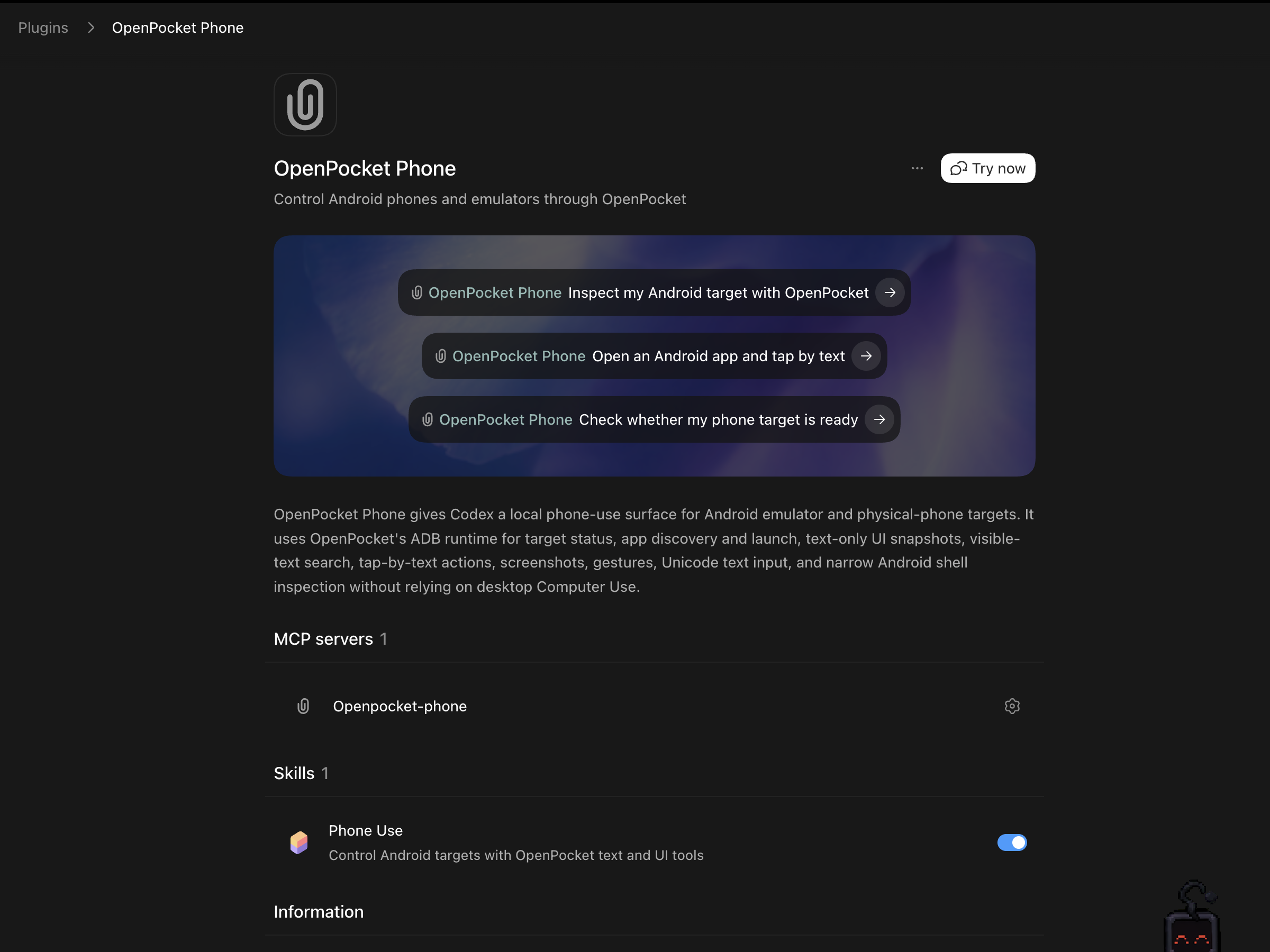
If OpenPocket Local does not appear, run the one-command fallback and restart the app:
npm run phone-use:install -- codexClaude Desktop
The upload-ready archive is committed at:
plugins/openpocket-phone/claude/openpocket-phone/releases/openpocket-phone-claude.zip- Open Claude Desktop Settings > Plugins.
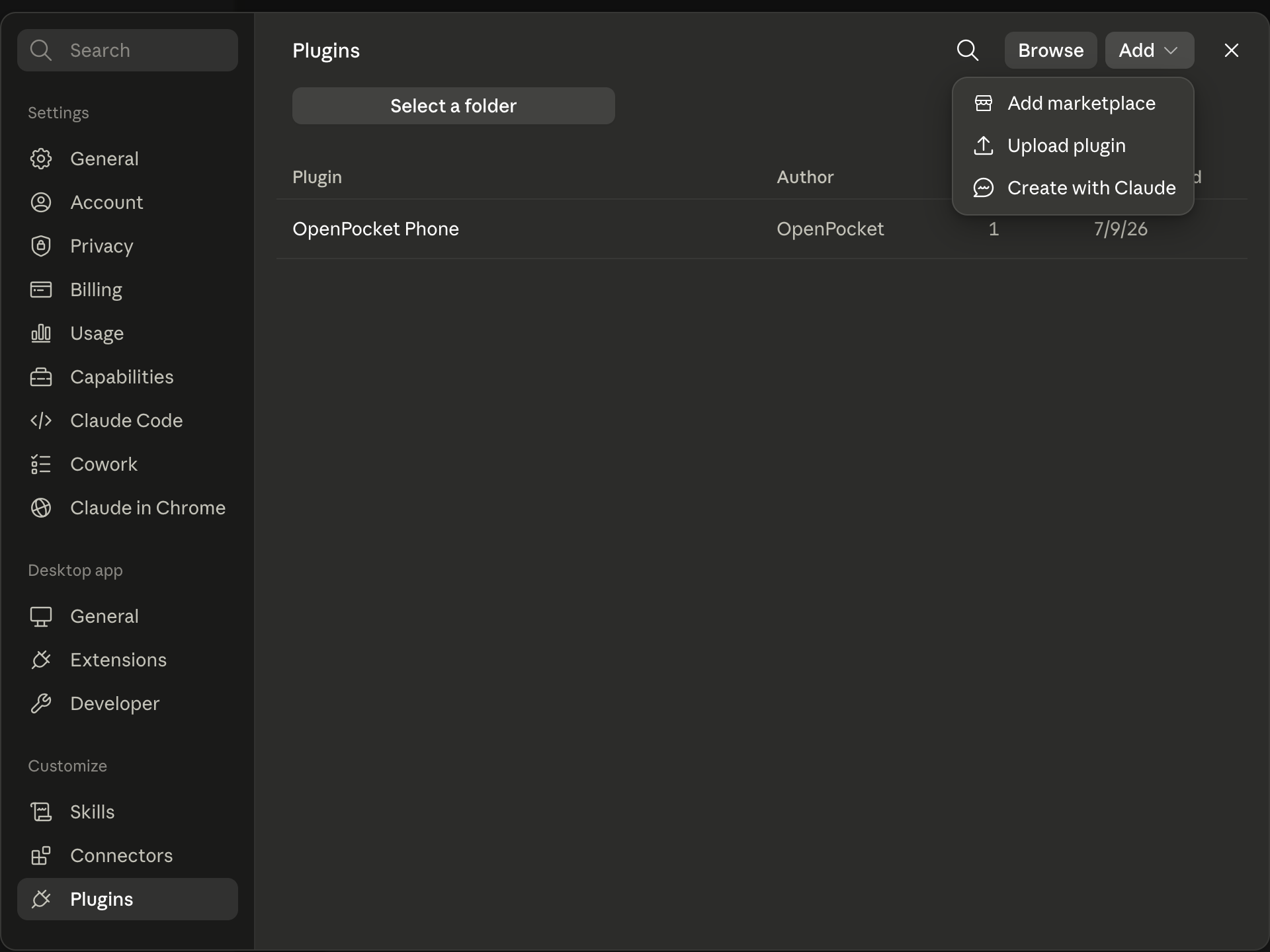
- Select Add > Upload plugin.
- Choose
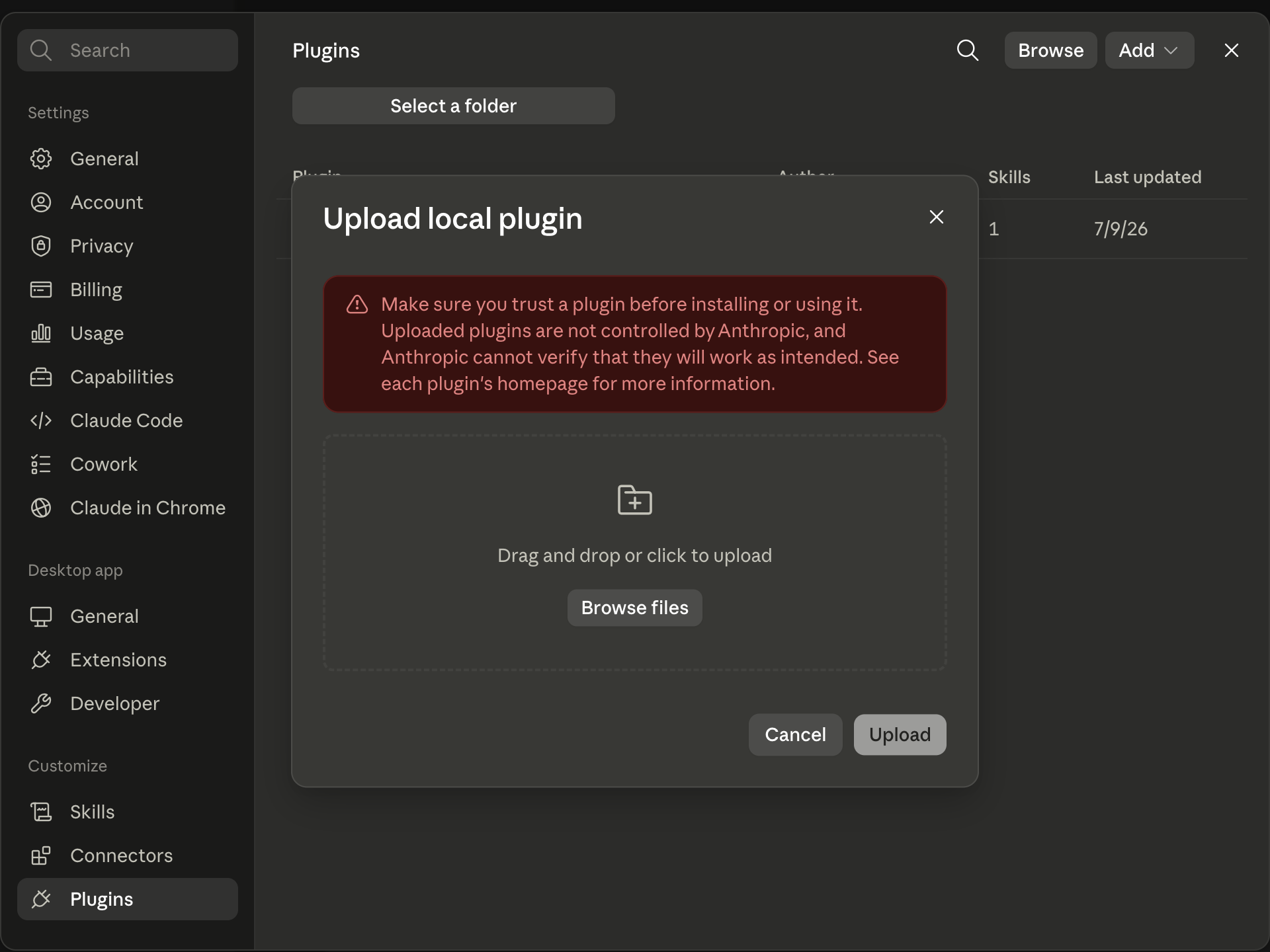
openpocket-phone-claude.zip. - Review the local-plugin warning and select Upload.
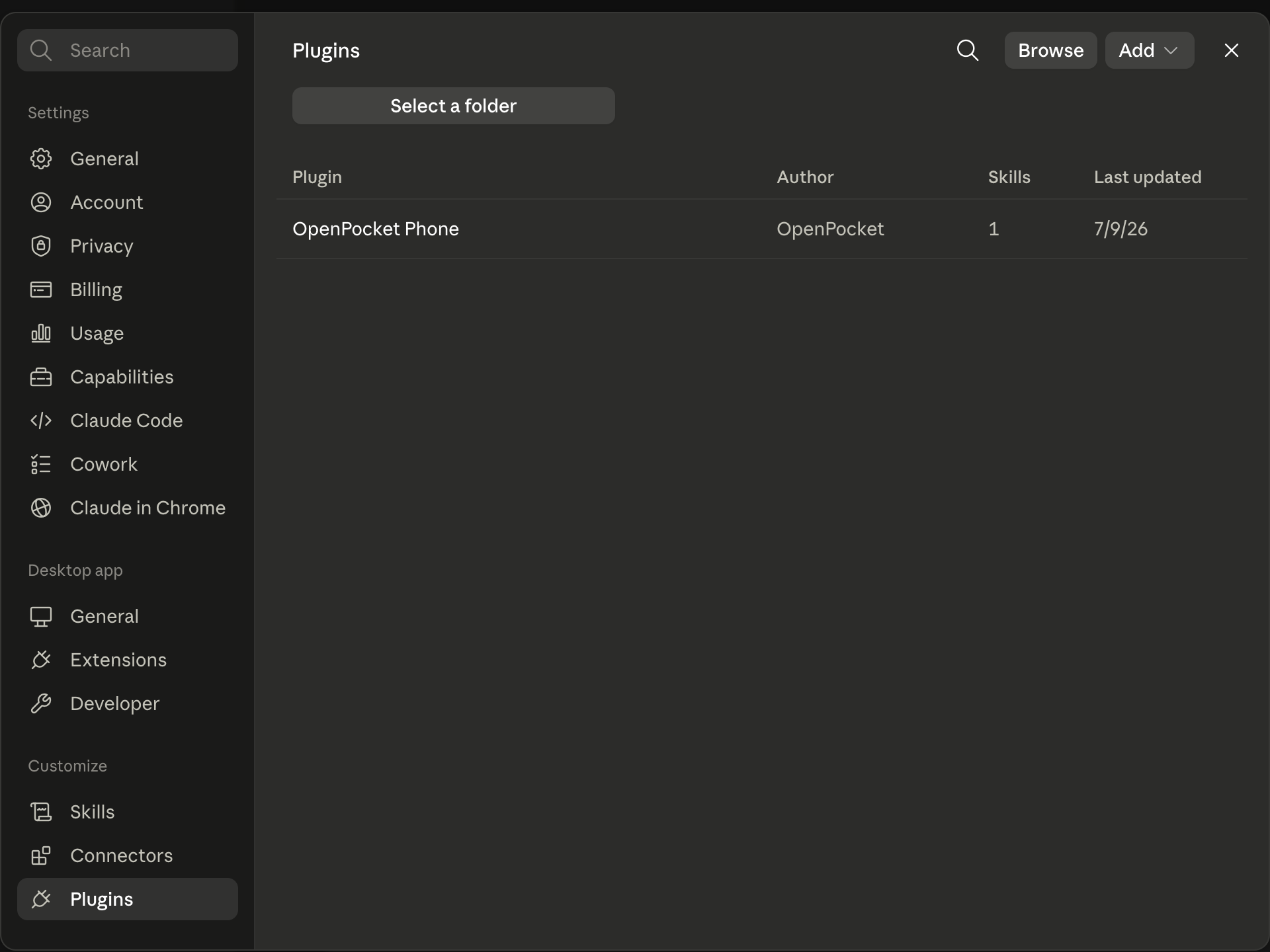
- Confirm that OpenPocket Phone appears in the plugin list.
- Start a new Claude Code task.
The local upload action is in the Plugins Add menu:
Select the ready-made zip in the upload dialog:
A successful install appears as a native plugin with one bundled skill:
For one-process development tests, Claude Code can load the source folder or zip directly:
claude --plugin-dir ./plugins/openpocket-phone/claude/openpocket-phone
claude --plugin-dir ./plugins/openpocket-phone/claude/openpocket-phone/releases/openpocket-phone-claude.zip
Physical Android Phone
Authorize the device first:
adb devices -lThen pin the selected serial:
npm run phone-use:install -- codex --device <serial>
npm run phone-use:install -- claude-code --device <serial>
OpenPocket does not bypass Android trust prompts, lock screens, account prompts, or OS security controls.
First Test
Use a new task after installation:
Use OpenPocket Phone only. Call target_status. If the configured target is an
emulator and no emulator is online, start it. Then report targetType, avdName,
devices, bootedDevices, resolvedDeviceId, resolveError, and ambiguousTarget.
Then run a read-only screen check:
Call current_app and ui_snapshot. Report the foreground Android package,
screen size, and visible text. Do not tap or type anything.
A successful native test calls these tools directly from the new Codex or Claude Code task. You should not manually start dist/mcp/server.js.
Tool Surface
| Group | Tools |
|---|---|
| Target | target_status, start_emulator, stop_emulator |
| Inspect | current_app, screenshot, ui_snapshot, visible_text, find_text, wait_for_text |
| Act | tap_text, tap, tap_element, swipe, drag, long_press_drag, type_text, key_event |
| Apps and shell | open_app, launch_app, adb_shell, list_apps, list_packages, wait |
Prefer text and element tools over raw coordinates:
- Confirm the target with
target_status. - Inspect with
ui_snapshot,visible_text, orcurrent_app. - Locate a control with
find_textorwait_for_text. - Act with
tap_textortap_element. - Use raw
taponly when UI metadata is unavailable.
Troubleshooting
Skill Visible, Tools Missing
Start a new task. Plugin tools are resolved when a session starts; existing tasks do not gain newly installed MCP tools.
Node Or ADB Missing
Confirm both commands work in the host environment:
node --version
adb devices -l
Node must be version 20 or newer. Add Android platform-tools to PATH, or set ANDROID_SDK_ROOT or ANDROID_HOME.
Wrong Emulator
Set emulator.avdName in ~/.openpocket/config.json to an installed AVD. If more than one ADB device is online, pass deviceId explicitly to every inspection and action tool.
Validate The Bundle
npm run phone-use:package
node plugins/openpocket-phone/scripts/doctor.mjs
claude plugin validate plugins/openpocket-phone/claude/openpocket-phone --strict
For package internals and maintainer validation, see the repository integration guide.